
Backups and restore
Scheduled, encrypted copies of a database or an app, sent to S3 or to another server.
Scheduled, encrypted copies of a database or an app, sent to an S3 bucket or to another server's disk, with a restore that puts them back.
- A destination is where the copies go.
- A schedule says what to copy, where, how often and how many to keep.
- A run is one execution. It produces one artifact.
The backup runs on the server that holds the data. It is compressed and encrypted with age
before it leaves the server, with one key pair per destination. Nothing in between can read it.
Add a destination
Storage -> Destinations -> Add Destination.
Pick any server, including a storage-only one. Leave the path empty to use the agent's managed store. A custom path must be absolute and needs instance admin.
Then click Test connection. An agent runs a real test: a small write and a delete on a bucket, a write and a free-space check on a folder. A read-only key is reported as failed.
A failed test is a normal result. Connection log in the destination's menu shows every step and the commands to repeat it by hand.
Read the destinations list
Opening Storage -> Destinations tests every destination. One that cannot be reached keeps its last figures and turns red.
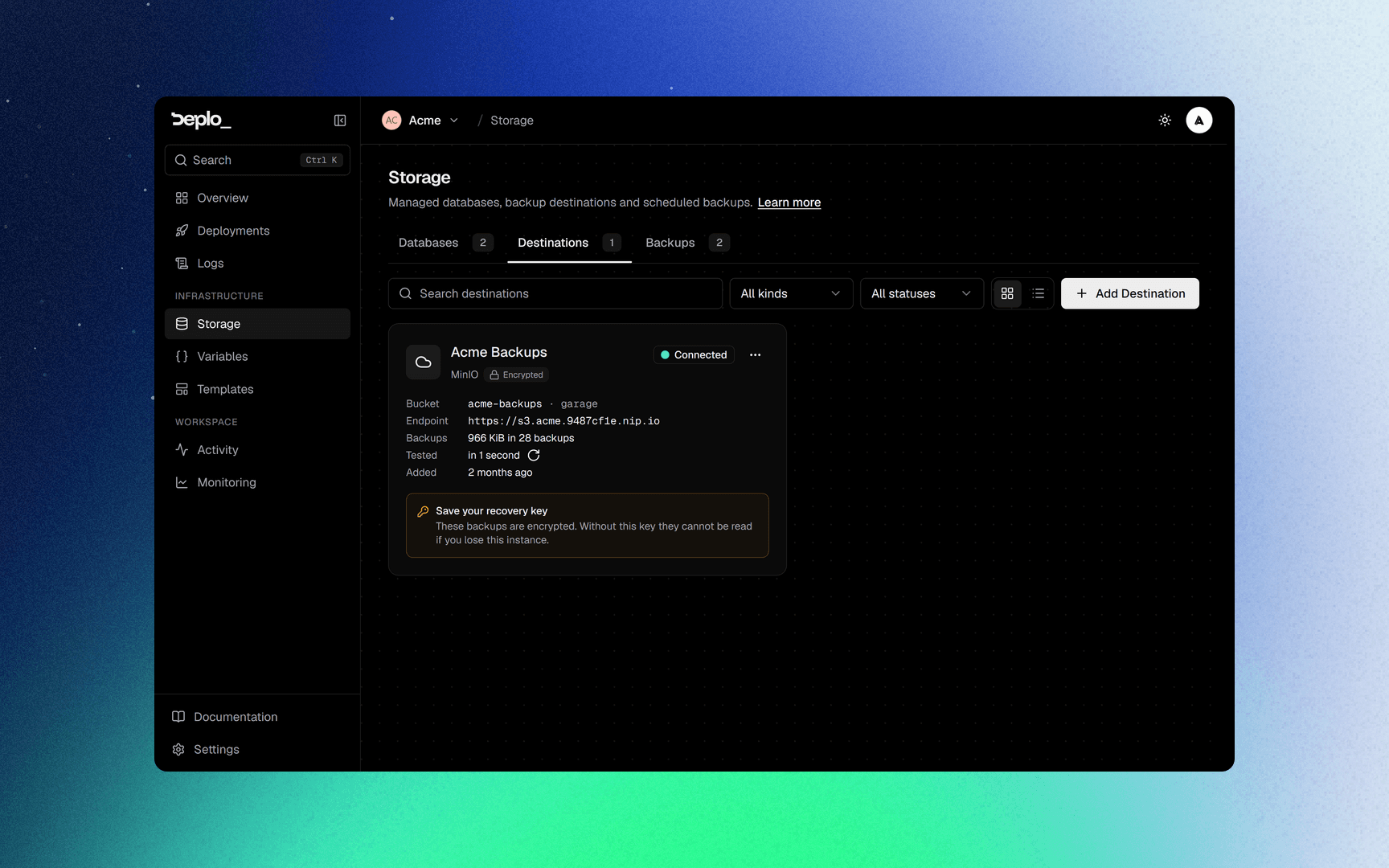
- A folder on a server shows a bar: your backups, everything else on that disk, and free space. It turns amber past 80% used.
- A bucket shows the total:
48.2 GB in 137 backups.
The refresh icon re-tests one destination. The toolbar has search, filters, and a switch between cards and a table.
Save the recovery key
Every destination has one. Download it from Download recovery key in the destination's menu. The card keeps reminding you until somebody does.
You need it when DEPLO_SECRET was rotated or lost, or when the control plane itself is gone. With
the file, any artifact from that destination can be decrypted anywhere:
age -d -i recovery-key.txt backup.sql.gz.age > backup.sql.gzDownloading the key is recorded in the activity log.
Schedule a backup
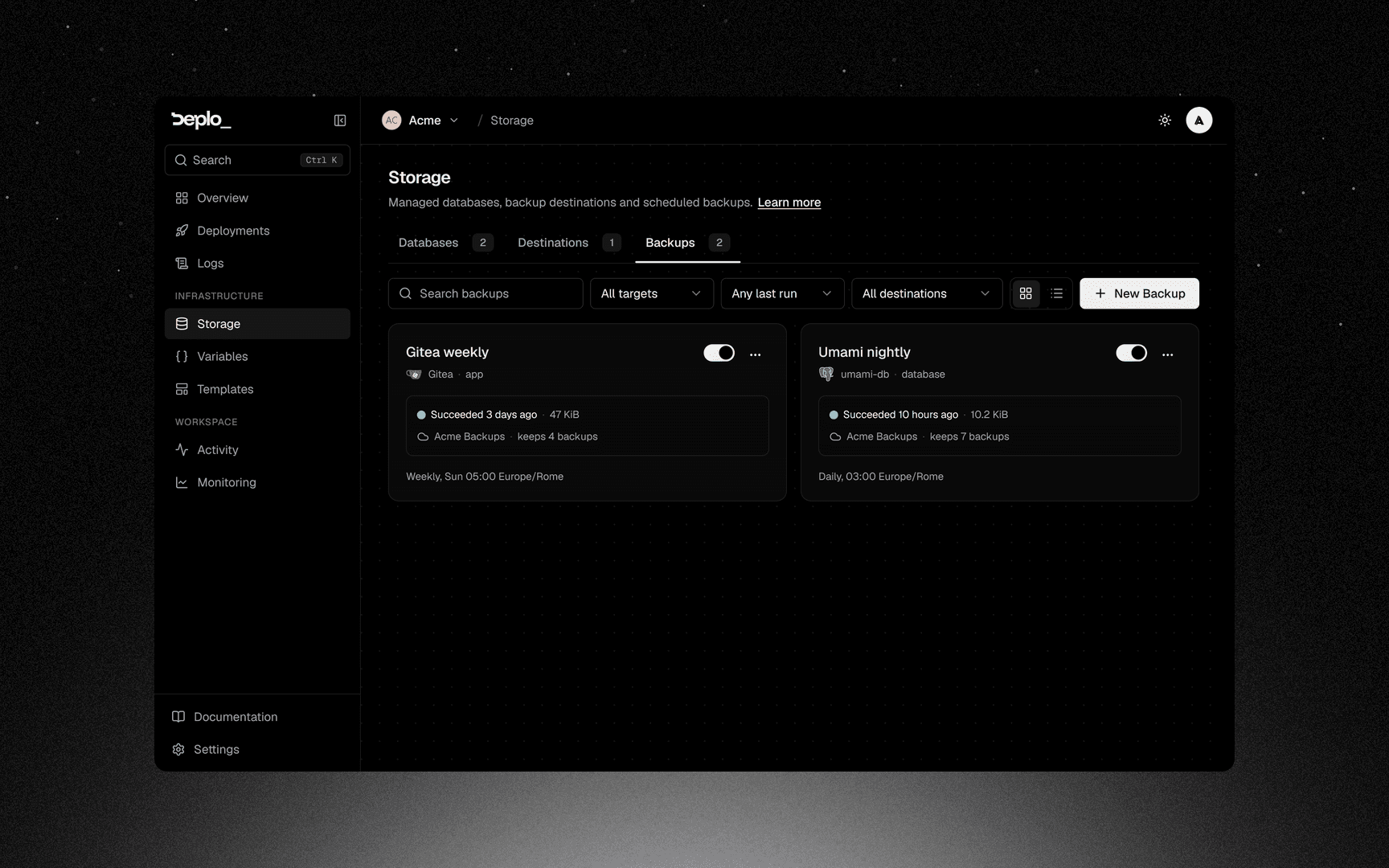
Start a new backup
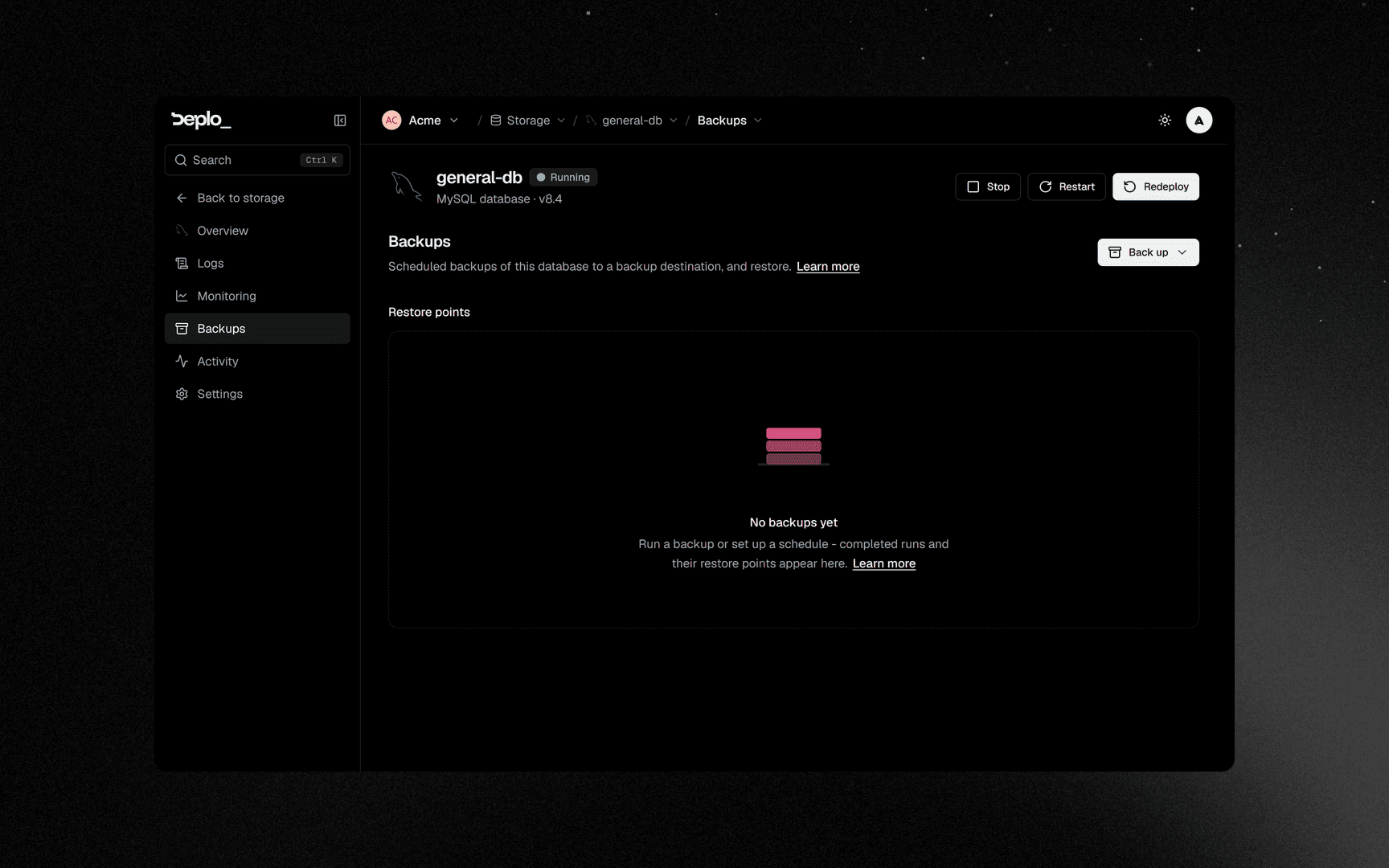
Storage -> Backups -> New Backup, or Back up -> New schedule on the Backups tab of an app or a database.
Pick the target
One app or one database.
Pick the destination
Pick the Destination.
Name it
A name is suggested from the schedule.
Set the schedule
Set the schedule and its Timezone. The shortest interval is every 15 minutes.
Set retention
Set Keep.
Keep is a count, not a number of days. Keep 7 (the default) keeps the seven most recent
successful artifacts. The newest one is never removed, and a failed run does not use a slot. The
maximum is 365.
Back up -> Back up now runs one backup right away.
Restore
Every finished run is a restore point, listed under Restore points on the target's Backups tab. Each row's menu has Restore, Download and Delete.
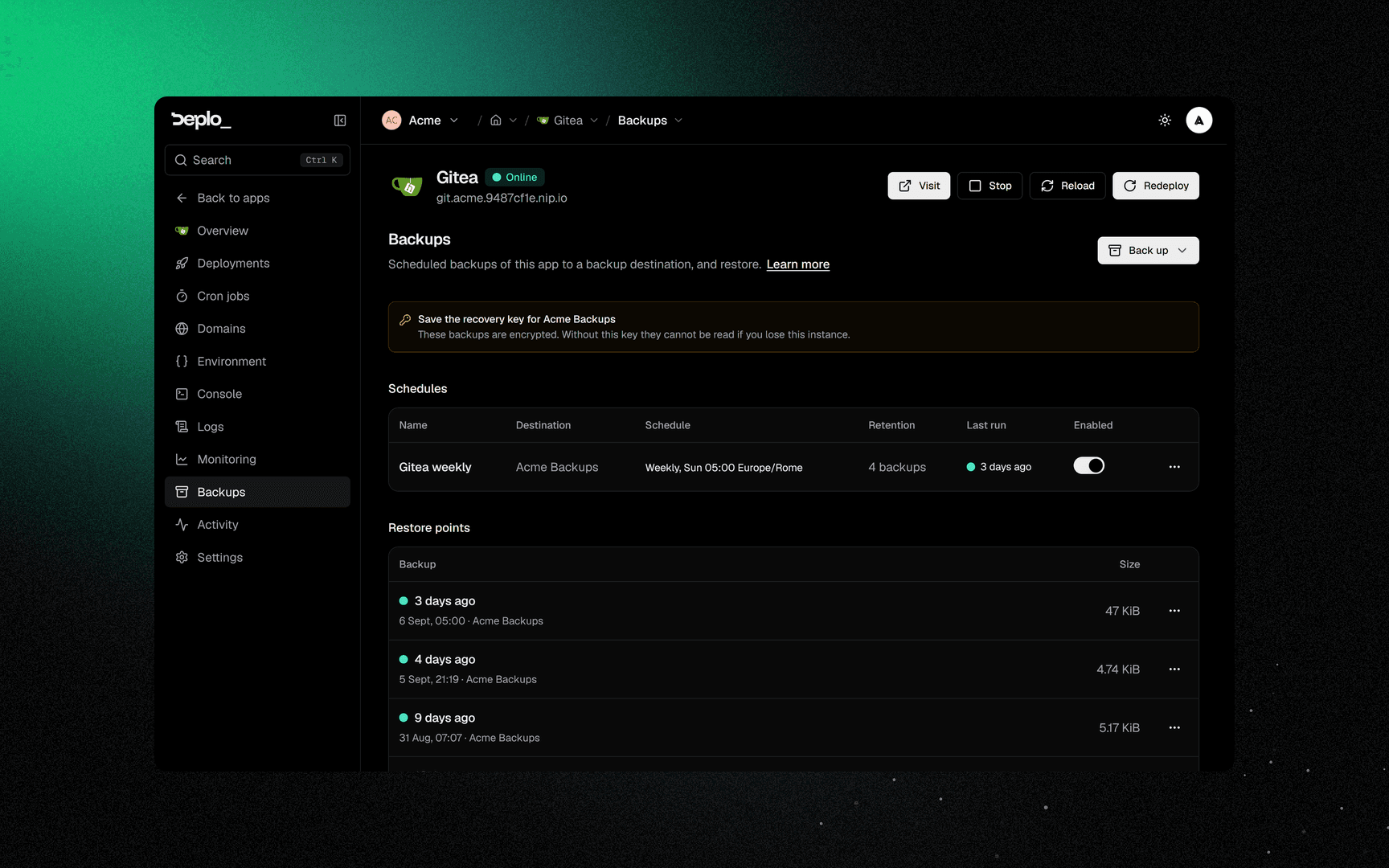
A restore replaces the current data. It asks you to type the target's name.
Drops and recreates the database.
The artifact's checksum is checked before the restore starts.
Back up -> Restore from file restores an artifact from your computer. If it is encrypted, paste the recovery key.
Download an artifact
Download in a restore point's menu. The artifact is decrypted on the way out. This needs
restore_backups. An app archive also needs reveal_secrets, because it contains the app's
environment variables.
Good to know
- An app schedule does not include its databases. Schedule the database separately.
- Retention counts successes. Failed runs do not use a slot.
- A skipped hour on a DST change shows a warning.
delete_backupsis a separate capability, because deleting runs can leave a target with no restore point.- Deleting a schedule does not delete its backups. They stay until you delete them under Restore points.
- Deleting the app or database removes its backups after 30 days. Until then they can still be recovered.
- A destination on the same server as the data is lost with that server. Put at least one copy elsewhere.
- Backups are always encrypted.
Troubleshooting
- Test connection fails on a bucket - usually the key is read-only, or the endpoint and region do not match the bucket. Read the Connection log.
- Runs fail with no space - the destination server's disk is full.
- Restore refuses - the checksum did not match, or the artifact is encrypted with a key this destination does not hold. Use Restore from file with the recovery key.
More in Databases and backups.
Next steps
Did this page help you?