
Search
Press Ctrl K and reach anything in Deplo by typing its name.
Open it
Press Ctrl K (⌘K on a Mac) anywhere in Deplo. Clicking the search box at the top of the sidebar or pressing / does the same.
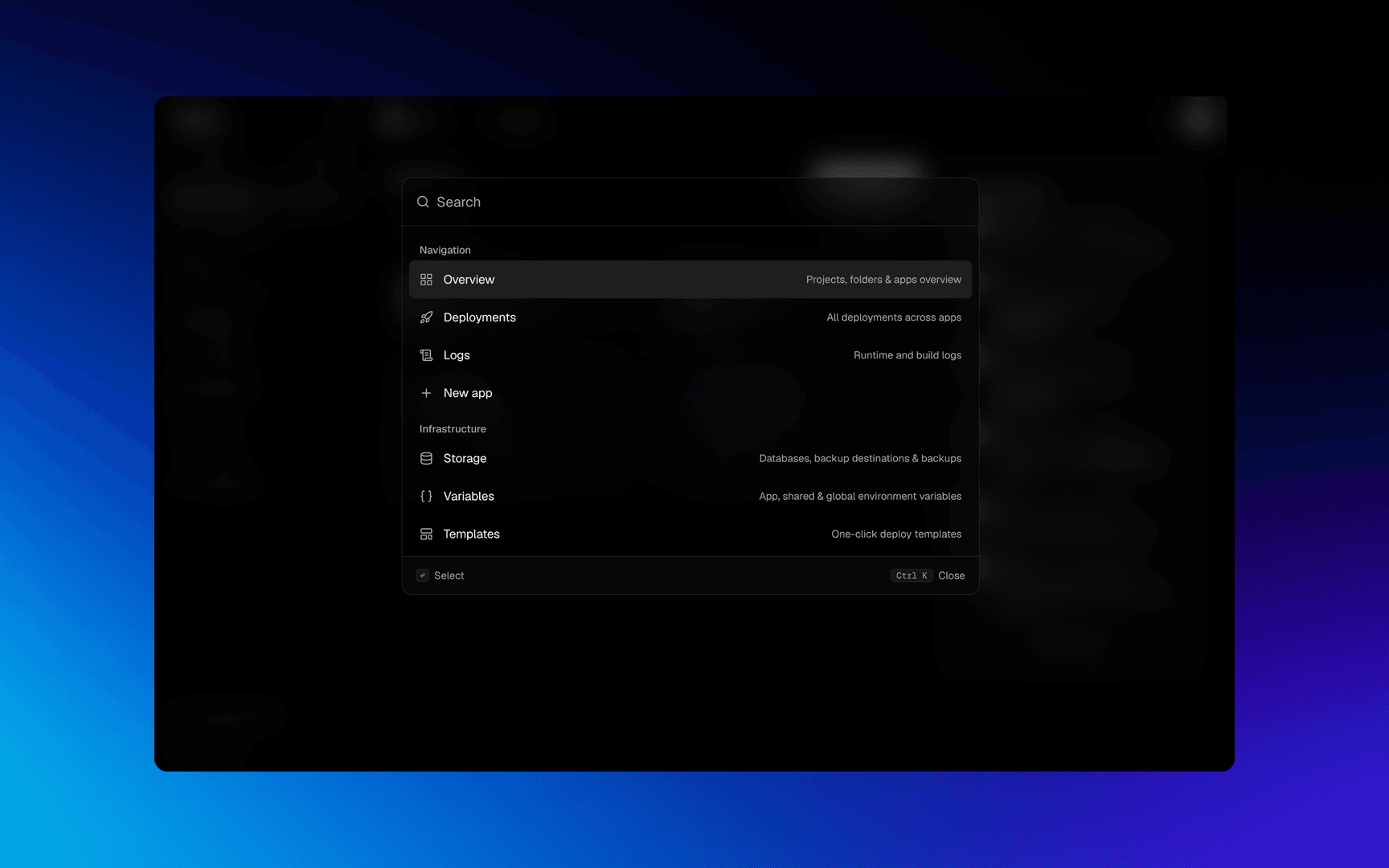
On a phone, the magnifier in the header opens it full screen.
What it finds
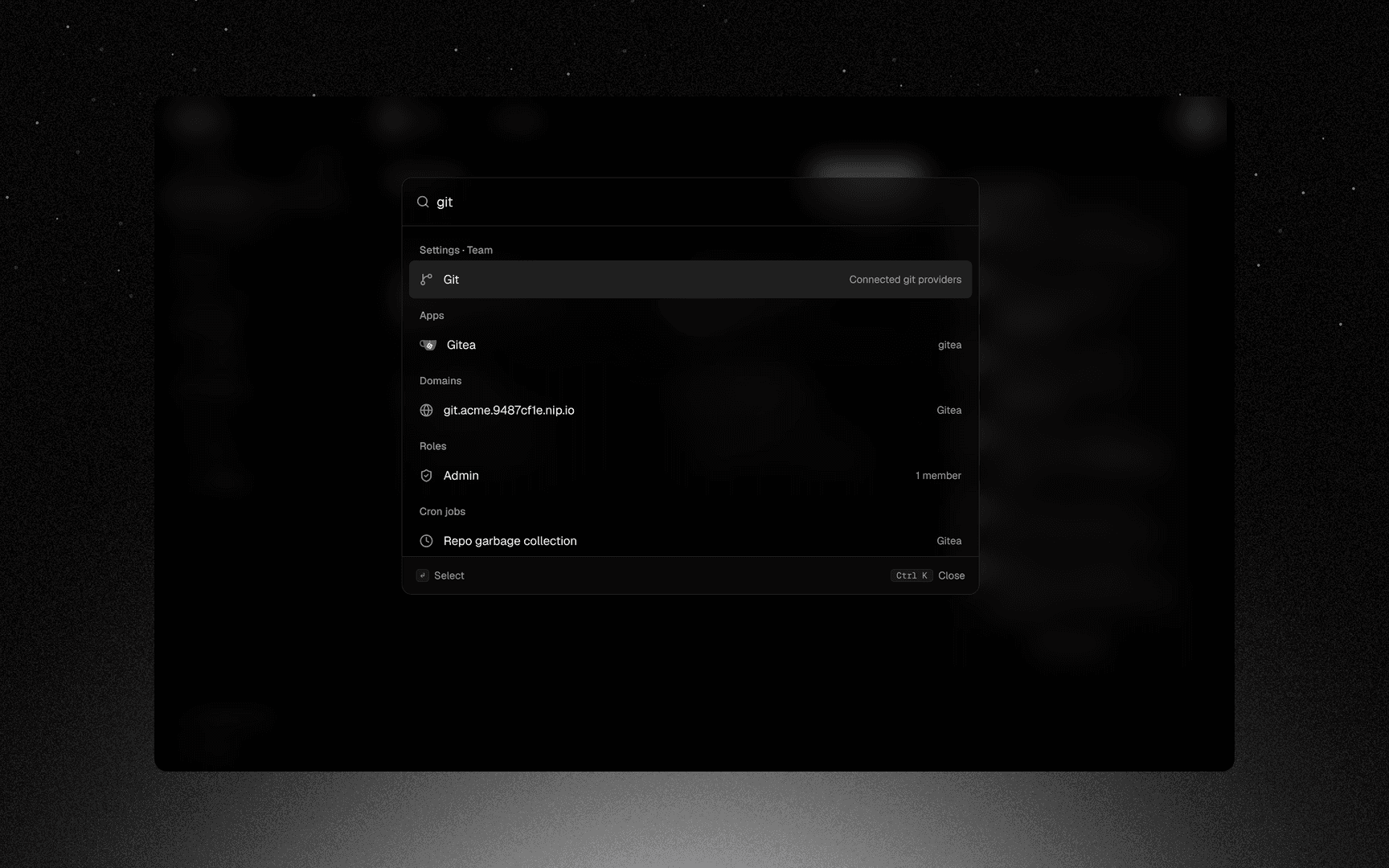
Type a few letters and the palette searches everything at once. Case and separators are
ignored, so better auth finds better-auth-docs.
| Group | What it covers |
|---|---|
| Apps, Databases | Every app and database, by name, slug or id |
| Servers | Fleet machines, by name or address |
| Projects, Environments, Folders | The Overview's own structure |
| Domains | A hostname, and the app serving it |
| Members | People on the team, by name or username |
| Roles | The team's roles, by name |
| Cron jobs | Scheduled jobs, and what they run on |
| Templates | The one-click catalogue |
| Pages | Every page in Deplo, New app included, and each app's own tabs |
| Settings | Two-factor, passkeys, registries, cleanup and the rest |
Every row is a page. Enter opens it and closes the palette. For an app or a database, that is its Overview. The palette never deploys, starts or stops anything: those actions stay on their own page, behind their own confirmation.
You only see what you are allowed to see.
Reach one app's page directly
Type a page name to get it for every app. Add the app name to get only that one:
| You type | You get |
|---|---|
deployments | Deplo's own page, then every app's Deployments |
deplo variables | deplo-web / Environment |
gamewatcher domains | gamewatcher / Domains |
main backups | main / Backups |
These rows show the app's logo with the page's icon on it.
A page also matches on its description, which is why variables finds the page called
Environment.
Six rows show at once. Show N more opens the rest.
A word that names one of your apps matches the app. Typing blog gives you the app, not
all of its pages.
Other teams
The palette searches every team you can reach. Results from the current team come first. Others are listed under Other teams, each labelled with its team.
Enter on one of those switches team and opens the page in one step.
Team settings are included. Searching roles gives you the Roles page of every team you
can reach, and the roles themselves are searchable by name.
Teams you cannot enter right now, for example because two-factor is required, are skipped.
Keys
| Key | What it does |
|---|---|
| Ctrl K / ⌘K | Open or close the palette |
| / | Open the palette (unless you are typing in a field) |
| ↑ ↓ | Move through the results |
| Enter | Open the row |
| Escape | Close the palette |
Next steps
Did this page help you?