
Everything in Deplo belongs to a team. A person joins a team as a member with a role, which is a named set of capabilities.
There is no email invite, because Deplo does not send mail. There are two ways in:
- The person already has an account: add them to your team directly.
- The person has no account: an instance admin creates a registration link and sends it to them.
Add somebody who already has an account
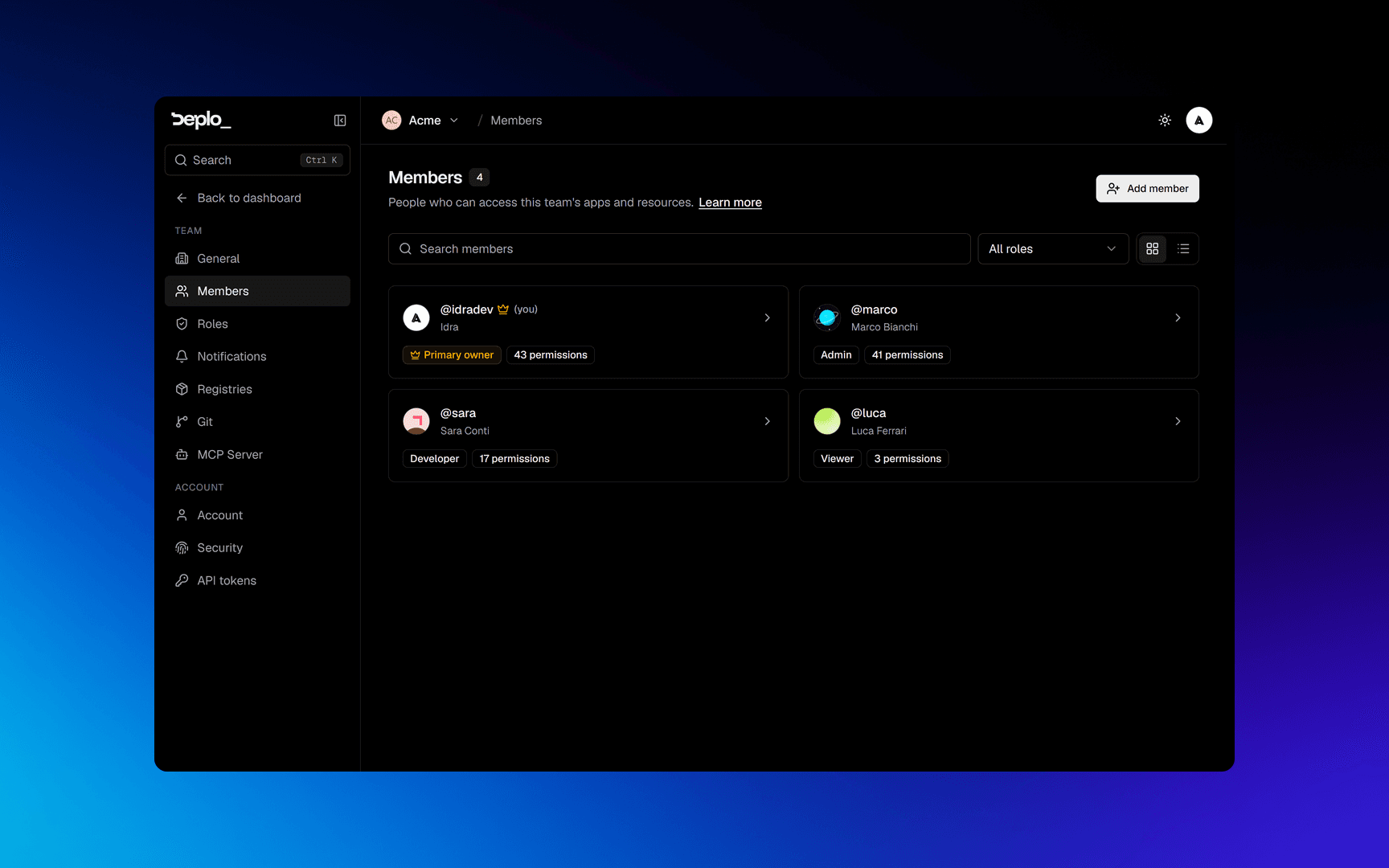
Add a member
Click Add member.
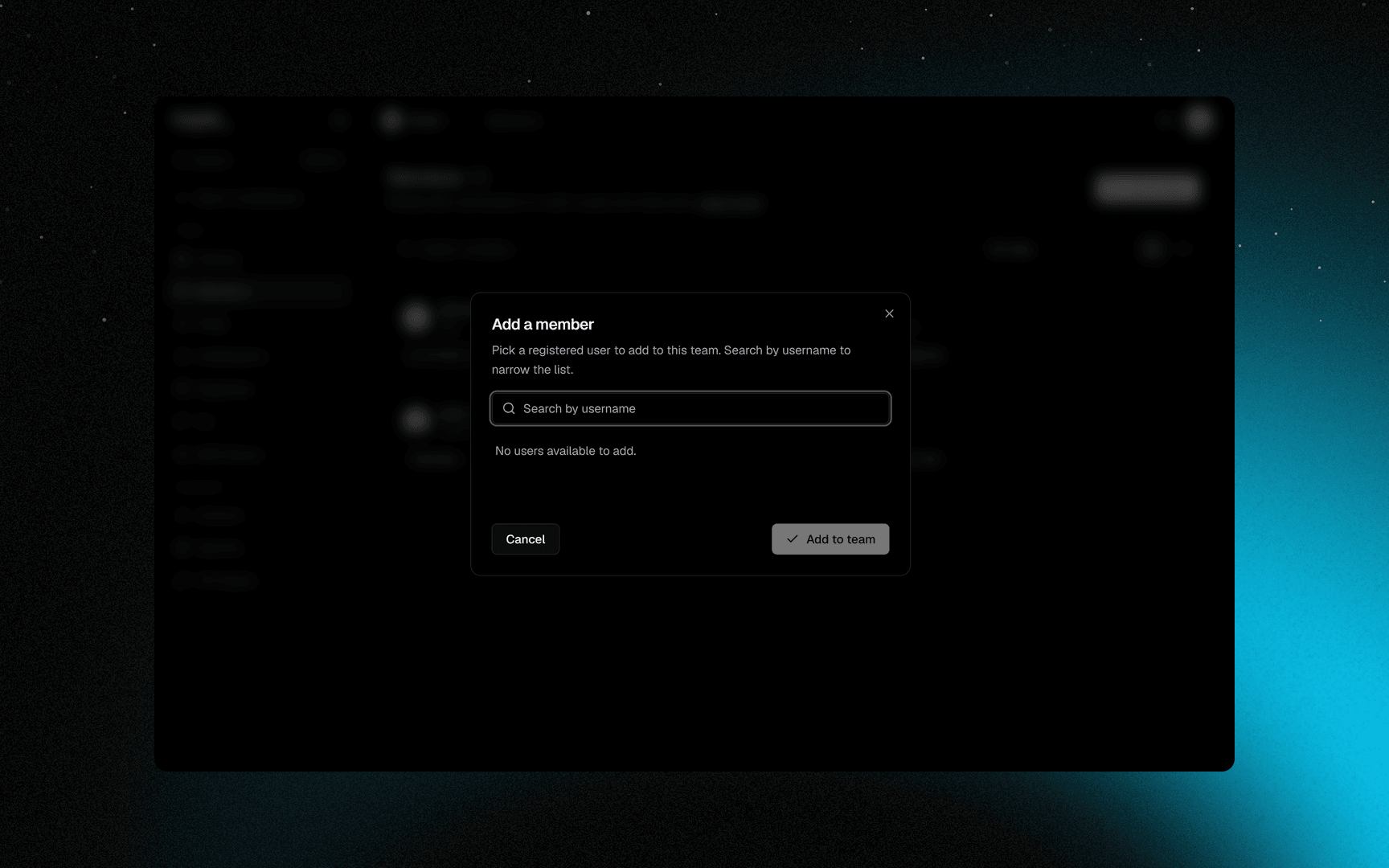
They see your team in their team switcher immediately.
Invite somebody new
This needs an instance admin.
Open users settings
Open Settings -> Users, in the system section.
Create the user
Start Create a new user and follow the wizard.
Get the link
Deplo creates a single-use link. It works once and expires in 24 hours.
Share it
Share this link with them over a channel you trust.
They open it, choose a username and a password, and land in their own team. Then add them to yours from Settings -> Members.
Pending links are listed on the same page and can be revoked before use. An admin can copy a link again from the list during its 24 hours.
Roles and limited access
Each member row shows their role. Two badges to know:
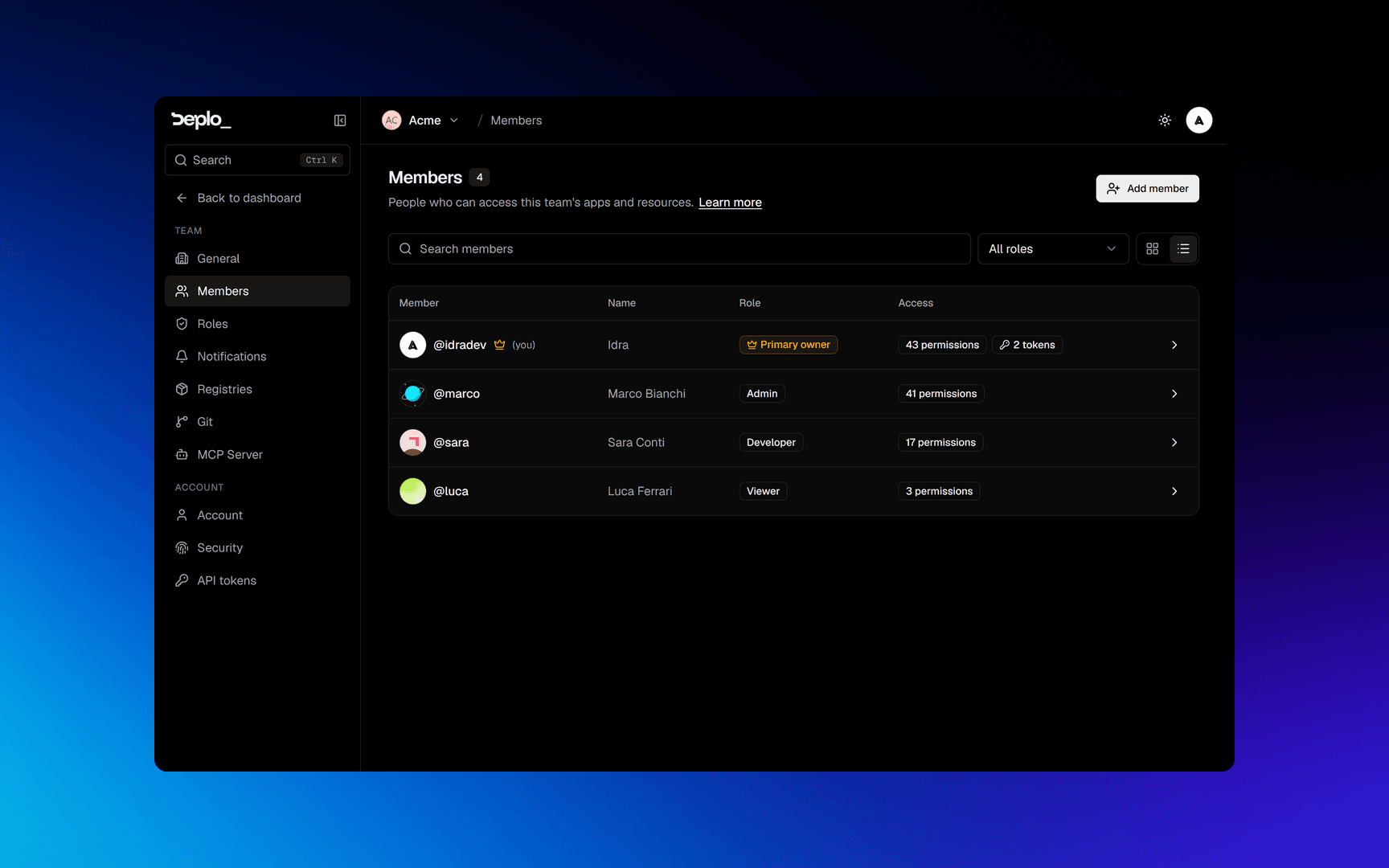
- Primary owner is the team's founder. Nobody can remove, demote or edit them, not even instance admins. Ownership is transferred only from Settings -> Members -> the member -> Advanced, by the owner, to a member of that team, after entering the password and second factor again.
- Limited access means their real access is changed by folder shares, so the role name alone does not say everything.
Open a member to see Permissions (their role and the scope tree), Advanced (instance admin, transfer ownership, remove), and Activity (what they did).
A member whose permissions were edited by hand no longer follows their role. Assign them a role again from the member page or the API to put them back on it.
Remove somebody
From the member's Advanced tab. Their membership ends, their sessions in that team stop working, and their API tokens lose the access they got from them. Their account and their own team are not touched.
Two more things happen, so adding them back later starts clean:
- Every folder share and per-app grant they had in this team is revoked.
- Folders they owned pass to the primary owner, so they do not disappear from everyone's Overview. This is written to Activity, and the primary owner can share the folder again.
Good to know
- A team always keeps somebody who can manage it. No role edit or removal can leave zero
holders of
manage_members,manage_rolesormanage_team. - Teams are isolated. Adding somebody to this team gives them nothing elsewhere.
- Servers are shared between teams. An instance admin decides on the server which teams may deploy to it.
- Two-factor can be required for the whole team. A member who has not set it up sees nothing in that team. See Account security.
Troubleshooting
- The user search finds nobody: they have no account on this instance yet. Use a registration link.
- A registration link says used or expired: create a new one.
- They are in the team but see nothing: the team requires two-factor and they have not set it up, or their role has almost no capabilities.
See Sign-in and access for more.
Next steps
Did this page help you?