
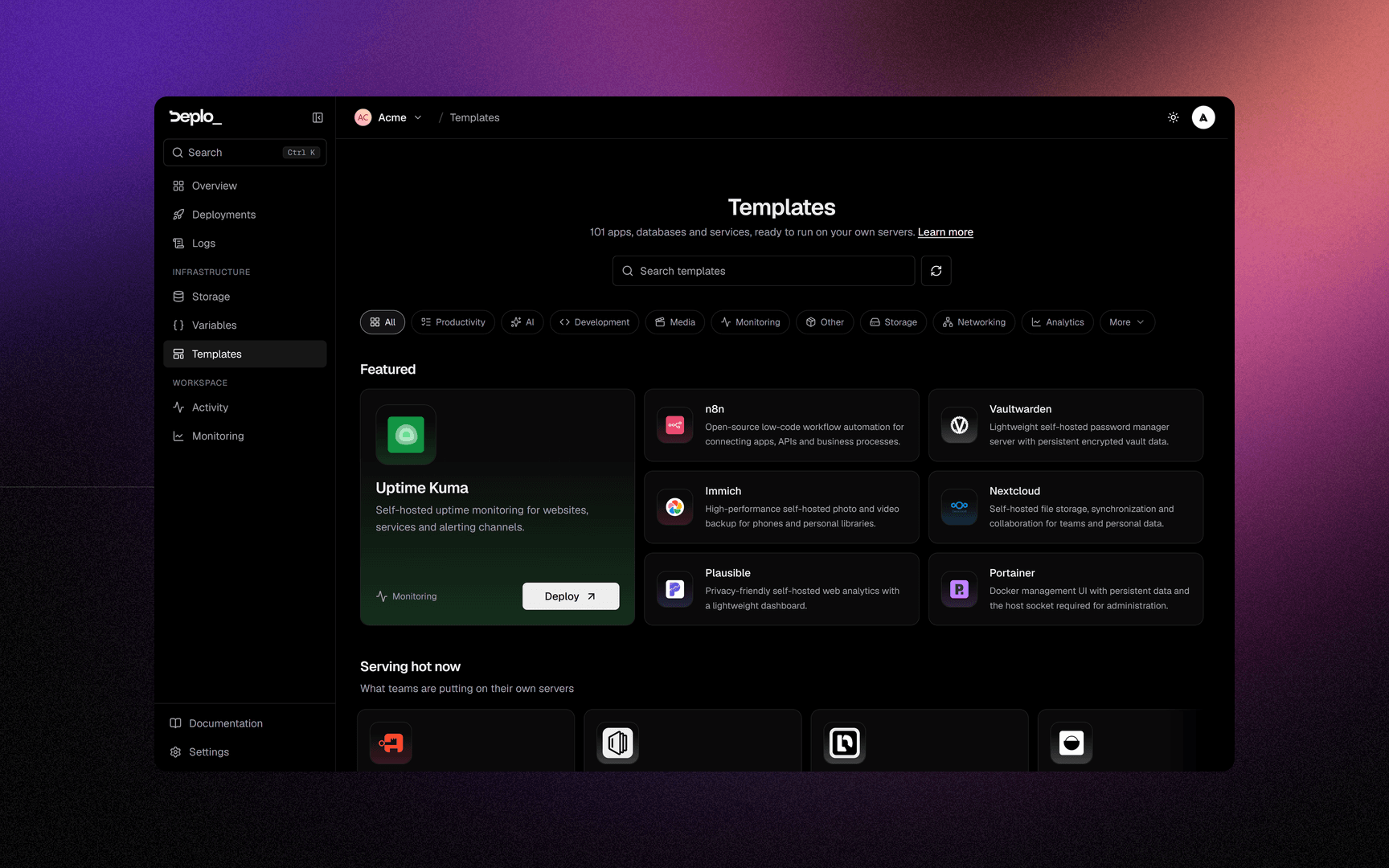
A one-click deploy of software that is already configured: WordPress, Ghost, n8n, Plausible, Supabase, MinIO, Uptime Kuma, Postgres, Redis and a few hundred more. Pick it, name it, choose a server, and it starts with generated passwords.
The catalogue is an online service, so new entries appear without updating Deplo.
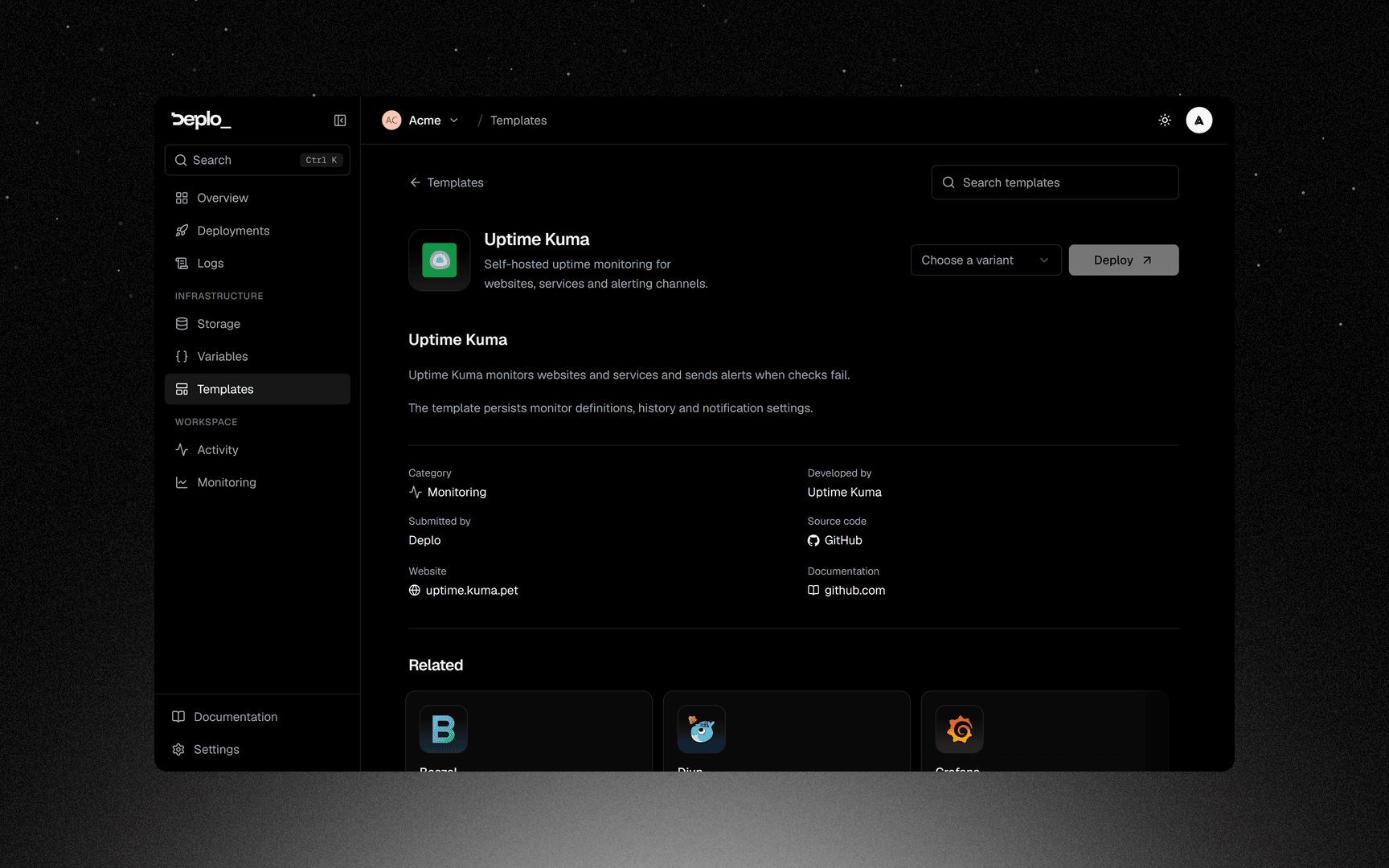
A Template can have several variants. A variant is what you deploy: a
docker-compose.yml plus its description and screenshots.
Deploying creates a normal app from the variant. After that the app is yours: edit the Compose file, change the variables, add domains.
Deploy one
Open Templates
Open Templates in the sidebar, or the Template button on the first step of the new-app wizard.
Find what you want
The page has featured templates, a search box, categories and collections. All templates lists the whole catalogue A to Z.
Fill in the wizard
Deploy opens the new-app wizard already filled in. Set the app name, pick the server, and check the Environment variables card: passwords are generated, and anything the template needs from you is listed there.
To change the stack before it runs, open Advanced, then Compose, and click Edit compose. Copy the original first if you need it: there is no way back.
Deploy
Click Deploy.
To create the app without starting it, open the arrow next to Deploy and pick Create without deploying.
After it is running
It is a normal app: Domains, volumes, Backups and Logs all work.
Most templates are Compose apps: a domain names which Container it routes to, and rollbacks are not available.
Good to know
- Updating the catalogue entry does not update apps you already created from it.
- Read the variables before you deploy. Some templates need a domain or an admin email at first start, and keep the first value they get.
- A template can include configuration files. They show up under the app's storage.
- The same template twice in one Environment needs a change. Two stacks cannot both use the
service name
db. Rename the service, or use another Environment. See Network isolation. - Browsing is open to anybody on the team. Deploying needs
create_apps. - If the catalogue is unreachable, apps you already deployed keep working.
- Your own project can get a Deploy button that opens this same wizard from its README. See Deploy button.
- The names and logos in the catalogue belong to their owners. Listing them is not an affiliation or an endorsement.
Troubleshooting
| Symptom | What to check |
|---|---|
| The store is empty or offline | The instance cannot reach the catalogue service. Check outbound network access, or point DEPLO_TEMPLATES_API_URL at your own mirror. |
| One container keeps restarting | Usually a required variable was left blank. Read that container's logs. |
| The deploy is refused over a service name | Another stack in this Environment already uses it. Rename the service, or deploy into a different Environment. |
| Two templates want the same port | Only one app can hold a host port. Use a domain instead of publishing a port. |
More in Deploys and builds.
Next steps
Did this page help you?